Thursday, 27 August 2015

Lock any application in Linux

Some times we need to lock some applications for security purposes. In this article we will learn how to lock any application in Linux (It is support for both Debian and Redhat based systems)

Our Objective

     We are using .desktop file to lock any application in Linux. All applications has it's own .desktop file. Commonly, .desktop file is used to define various performance of application, when it run in X based system (Commonly GUI). We can modify application's performance via it's .desktop file. .desktop file is also called as configuration file for an application.

Where .desktop file is located?

  All apllications .desktop file is located in /usr/share/applications directory.

 What we need?

  1. Terminal
  2. Any text editor

How to do?

  • Open your terminal window, then go to /usr/share/applications directory.
     cd /usr/share/applications  
    
  •   I have following applications .desktop files. You can view it by typing ls command

/usr/share/applications


  • For an example, i want to lock firefox applications. So that the application will can ask password (root passord), whenever it launced.
  •  Open firefox.desktop file via any text editor. Where now am using nano text editor
     sudo nano /usr/share/applicatios/firefox.desktop  
       Find Exec=firefox and change it in to Exec=gksudo -k -u root firefox %u. Now save and exit. 
      Now launch firefox, it will ask password to run the application. 

    Thursday, 6 August 2015

    Understanding man pages


    Man pages are stands for manual pages. In Linux, all types of tools have it's own manual page. Manual pages are commonly contains informations and instructions about a command. man pages are very useful for learning commands in Linux.
    Even if we forget the commands, that time also man pages are helpful to remember. To get detailed information about man pages in Linux, then type following commands

    To know respective commands with our needs, then type following command in terminal 
     man -k keyword  
    

    For an example  
     man -k time  
    

    where, -k stands for keyword. the above command lists many commands with numbers. This number is refer to section of man pages command. Each section of man describes different kind of commands. You can get an over view of man pages by typing following command
     man man-pages  
    

    It gives look like following result


    In section 1 commands are described for ordinary users.
    In section 5 documents are document configuration files.
    In section 8 describes management commands.
    When we are using man pages, grep is an very useful utility. grep is the most important command in Linux. It is a filtering utility whcih is allows to search resolves of a command in a specific time. You can also use to find a text in text files. Let we use grep in man pages 
     man -k time | grep 1  
    
     If a commands separates by pipe means the output of the first command is goes to the input of the second command.
    The above command is gives following result
     
    Now we can easily identify the command 'date' to know date of the system.
    So now let as see the man page of date command 
     man date  
    

    For this command we will get following result

     
    The synopsis is very clearly shows how to use the date command.

    Let we see some useful options
    Look at -s which is describes "set time described by STRING". So we need to set the time. Now our dought is what a STRING?
    To get the detail about STRING type /STRING in the same man page. Now you will get look like following information about the STRING 
     
    when we are typing date -s with time. We will get human readable format. Now we are learned how to find a command using man -k.
    There is another way to get information about an command  
     date --help  


    Hope you understand!  

    Tuesday, 21 July 2015

    Renaming multiple files in Linux

    Some times we need to rename multiple files. Renaming multiple files takes more time when we are using regular ways. There is a easy way to rename multiple files.

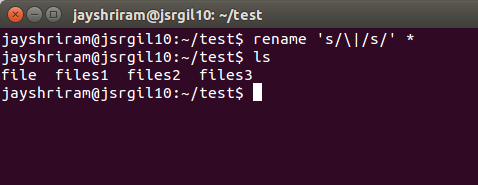
    rename tool is used to rename multiple files. Consider i am having following files


    Now, we need to replace | (pipe) to s character. So that,

    rename syntax is,
    rename 's/\oldname/newname/' *

    (Note: rename syntax is modified by our requirements)
    Now, the pipe can be replaced by s character.


    Thursday, 2 July 2015

    Remote Desktop connection - Ubuntu PC


    In this article, i will show you how to connect a remote Ubuntu PC to your PC. Generally Ubuntu has built in software called "Remmina Remote Desktop" software. 

    Pre requirements

    1. IP address of remote PC

    2. Remote PC might be enabled to allow remote control sharing options

    1. To know the IP address:

       Open terminal by pressing CTRL+ALT+T. then type ifconfig. it will show IP 
     address

    2. Enabling desktop sharing in remote PC

       Open ubuntu dash and search "Desktop sharing" 


    you will get following window. In this window enable both options in the sharing window.


    Procedure

    In your local machine, open dash and search "Remmina remote desktop client" 
    then open the software


    then click on add button as shown in above picture.

    In the protocol section choose VNC - Virtual Network Computing. then in Server section type your remote pc ip address. Choose color depth "High color (16 bit) or High color (32 bit) inorder to get best performance. Choose Quality to Good then finally click connect button. Now you will get the remote pc to control.

    Thanks for reading the article if you have any doughtor detecting problems then feel free to share your comments below.

    Tuesday, 23 June 2015

    Introduction to Server operating systems

     Generally there are two types of operating systems are available. They are
    server OS and Client OS. server OS in the sense it is the capable of creating and maintaining more than 10000 users. All servers are computer on-in network that provides services to other computers on the network.
    Example: Web server, print server, file server & etc.

       On the other hand, client OS is capable only minimum level (upto 20 users). This is for only Windows operating systems. But in Linux we can use Linux's client OS as a server OS by use of server tools.


       Consider you are running a Linux server (Or Windows server too), you might be follow the below instructions in order to get the best performance.
    Example of server OS: REDHAT 7 server 7, Ubuntu server 14.04.1 & Windows 2012

    Characteristics of Server OS

    1. The server OS is should be non user friendly. Because making an non user friendly operating system as a server OS can be protect from accessing third parties in to the server system
    2. The server OS may not have any multimedia features, sound cards & fancy  web browsers. Because this are all unnecessary for a server OS.
    3. The best choice of server interface is CLI. Mostly GUI is not recommended. GUI takes more CPU, power & memory utilizations. 
    4. Another one important  thing is GUI is makes security holes. To be secured CLI is the best way of maintaining server operating system
    5. Run necessary services only. Disable/stop unwanted services. For example, you are maintaining a web server then only run web related services like httpd, Apache and so on. But practically still unwanted services is there on the server. To disabling unwanted services are increases the speed of performance of a server


    Friday, 5 June 2015

    Shell script for startup programs

    We are already discussed about creating startup applications via terminal in previous article.


    All the time adding and configuring is takes more time. To reduce the time, at the place we need shell script.
    To do this, open terminal and create a shell via your favorite text editor.

                   $vim startup.sh
                   echo "Welcome to Autostart program!"
                   echo "Type your configuration file name"
                   read confname
                   echo "Enter your script path"
                   read path
                   echo "Enter your program name"
                   read pgname
                   echo "[Desktop Entry]
                   Type=Application
                   Exec=$path
                   Hidden=false
                   X-GNOME-Autostart-enabled=true
                   Name=$pgname" >> ~/.config/autostart/$confname\.desktop


    Now save and quite by using :wq.

    We need to change it as executable. To do this,

                  $chmod +x startup.sh

    Script is ready for using startup applications.Run the script,

                  $sh startup.sh

    //It will ask questions. just fillup. The shell script can be done.

    Explanation:
             echo = is used to print text
             read = It is used to grab information from users
                  = Grabbed information can be displayed
             \        = It is the escaping character in shell script. It is act as a delimiter when we are using standard symbols instead of a script file.
    If you have any problem while doing this script, kindly post your problems as a comments. Thank you for reading!

    Creating startup scripts via terminal

    Every time believing GUI is not helpful. We can also use GUI tool called "Startup Applications" in Ubuntu. If you run minimal server than GUI tool is not possible to help us.


    Now am going to perform startup scripts via terminal
    Consider i want to run terminal on system startup.
    To do this, open terminal and create a shellscript file by using any text editor. In this i am using Vim. You can use any application or script. Now i am creating startup program for gnome-terminal.

         $vim terminal.sh
         gnome-terminal
         :wq

    Now, create .desktop file in ~/.config/autostart/ directory.

         $vim ~/.config/autostart/terminal.desktop
          [Desktop Entry]
          Type=Application
          Exec=/home/buvanesh/terminal.sh
          Hidden=false
          X-GNOME-Autostart-enabled=true
          Name=terminal
          :wq

    where,
          Exe= Executable file/script path
          Hidden is set to be true if you want to run the script in visible else we can hide it by set to be false.
           X-GNOME-Autostart-enabled=true
           You are running a GUI based script, then it should be set to true else we can set to false
     Now restart the machine, you can able to run script on startup time.